Authentication in Ciências

The Authentication System is the component responsible for verifying a user's identity. Authentication in Sciences is performed on a page similar to the one shown above.
Please note that changes to the login page are very occasional, always preceded by an announcement through official channels, and no further changes are expected in the coming years.
This authentication page reinforces the security of the current authentication process, now accepting the use of two-factor authentication (2FA) mechanisms, namely the Citizen Card and the Digital Mobile Key. Although it is still possible to use the classic login and password (through Single Sign-On), it is recommended to use authentication through the Citizen Card or Digital Mobile Key, as the authentication process is more secure.
The page layout is easily copied and should never be considered a guarantee of authenticity. The genuine authentication page will always be signed by the Faculty of Sciences, which can be confirmed cumulatively:
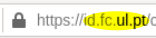
by visiting id.fc.ul.pt;

by using the https protocol (as opposed to http);

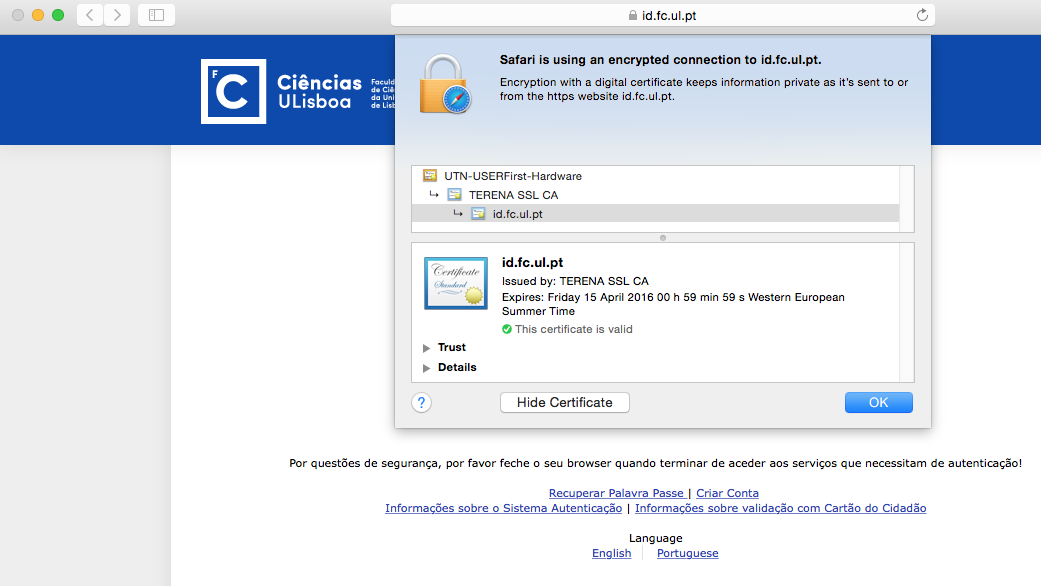
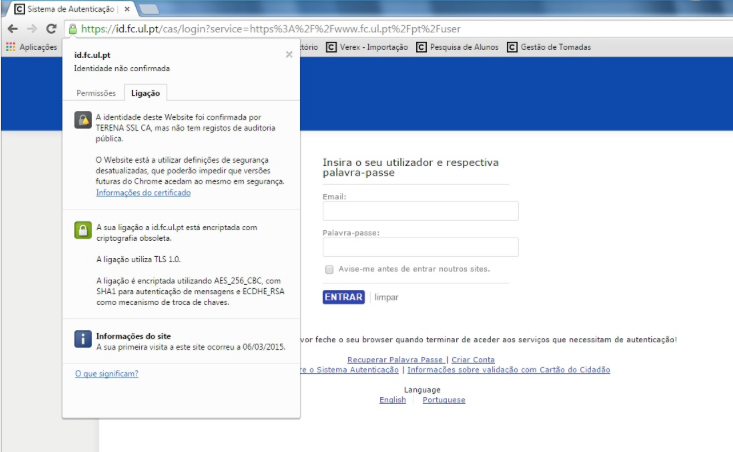
by the validity of the page's signature, confirmed by the browser through the display of a padlock (or equivalent) and the absence of alerts regarding the page's credibility.

Chave Móvel Digital (CMD) - Digital Mobile Key
The Digital Mobile Key is a means of authentication and digital signature certified by the Portuguese State that allows users to access various public or private portals and sign digital documents with a single login. This mechanism links a mobile phone number to the civil identification number for Portuguese citizens and the passport number or residence permit/card number for foreign citizens.
The preferred and most secure method of use, particularly in shared environments (laboratories, spaces with several people, etc.);
Some services may, in the future, only be accessible via CMD;
The CMD allows you to easily recover your login and password;
Access via login/password is still possible, although it is less advisable.
How to activate CMD?
CMD can be activated at any citizen's bureau or on any computer with Internet access and a Citizen Card reader. You will also need the PIN provided in the letter accompanying your Citizen Card. You can activate CMD in Ciências, at the IT Services Department (DSI). To do so,
you must go to the DSI premises (room 1.2.10), by prior appointment, and bring your Citizen Card (CC), your mobile phone and the PIN indicated in the letter accompanying the CC.
If you are unable to authenticate yourself via CMD, but have no problems doing so via login/password, please contact the DSI at suporte@ciencias.ulisboa.pt.
ID Card
The DSI has been updating the User Directory, which includes citizens' identification numbers (commonly known as ID card numbers, now Citizen Cards). When using a card reader, the Authentication System can use the certificate on the Citizen Card to guarantee the user's authenticity. This use of the Citizen Card is always protected by a PIN, which is provided in the correspondence sent when the Citizen Card is issued.
Each Citizen Card has a valid and reliable personal authentication certificate, which contains, among other things, your Identity Card number. The Certificate allows a relationship of trust to be established between the authentication service and the computer used, ensuring the validity of the ID card number, which can be compared with the ID card number associated with your Ciências account. If the ID card number is not in our directory, validation will not be possible, so you must go in person to the DSI service desk to update this information.
For authentication to work with the Citizen Card, you need a Citizen Card reader and the respective software installed on your computer. The Card software is compatible with most operating systems and has been tested on Internet Explorer and Firefox browsers. Please refer to the Citizen Card Manual for more information.
To use Citizen Card authentication, follow the ‘Citizen Card’ link on the authentication page. If you are redirected back to the Ciências authentication page, this means that authentication via the Citizen Card has failed. If the Citizen Card software is already correctly installed, the most likely reasons for the problem are:
The web browser does not support the Citizen Card. After installing the Citizen Card software, Firefox and Safari browsers still require a few additional steps. Please refer to the Citizen Card Manual for more information.
Your ID card number is not linked to your Ciências account. You can check if this is the case on your personal page on the Ciências Portal (after logging in) and contact the DSI in person to resolve the issue.
Single Sign-On
Ciências uses a single login system for most of its services, whereby each user has a single identity shared by all services and the result of an authentication process remains valid even when the user switches between different services. Authentication behaves like a service itself, with the same page (https://id.fc.ul.pt) always being presented to the user, regardless of the service accessed. This page checks whether the user has already successfully authenticated, dispensing with it on subsequent accesses.
The authentication service indicates to the user which application made the request.
How to verify the authenticity of the Science Authentication page
Verifying the authenticity of the Ciências portal authentication page is essential, as by using it you are providing your login and password to the recipient. This information is confidential and can be used to compromise your personal data or perform services on your behalf. Never use your Ciências credentials outside the Ciências information systems. If in doubt, contact user support.
The Sciences authentication service is automatically displayed whenever you try to access restricted Sciences content or directly via the address https://id.fc.ul.pt. Authenticity verification is performed differently depending on the browser used:
Internet Explorer
Click on the padlock symbol and check (image 1) whether the certificate is valid.

Firefox
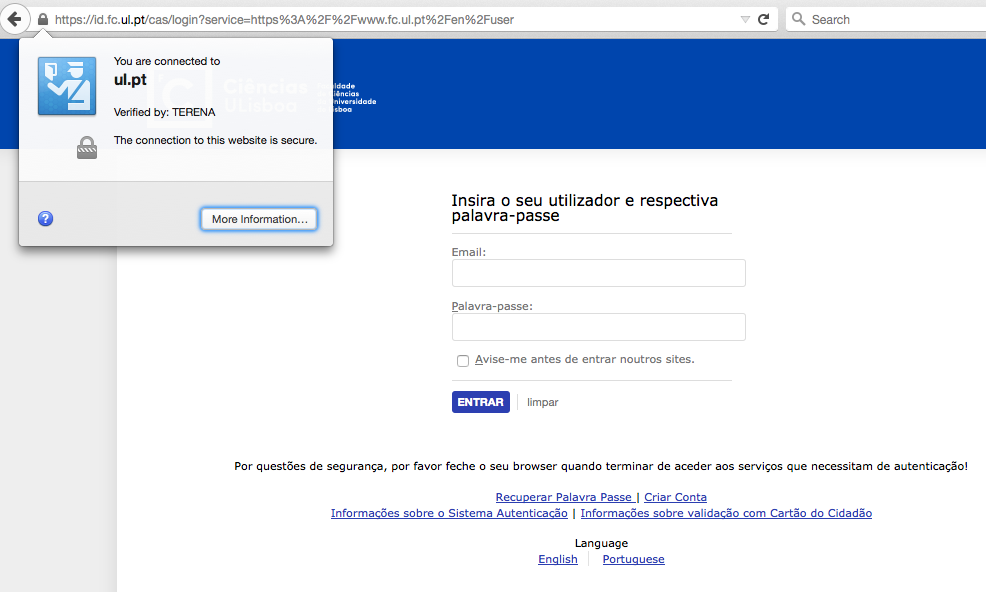
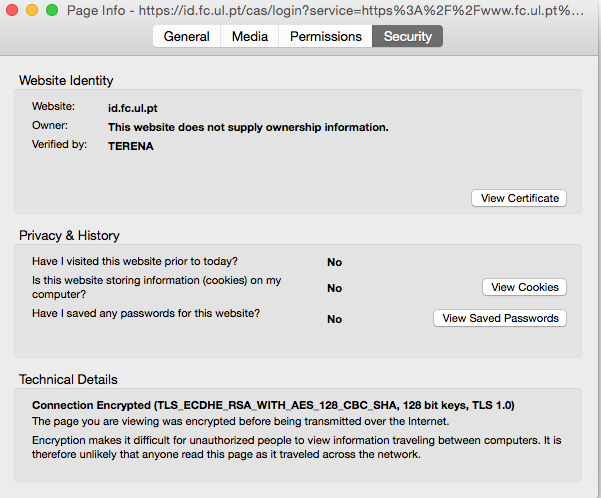
Check (as shown in images 2 and 3) whether they indicate that the certificate is valid (you should click on the padlock symbol).
Safari
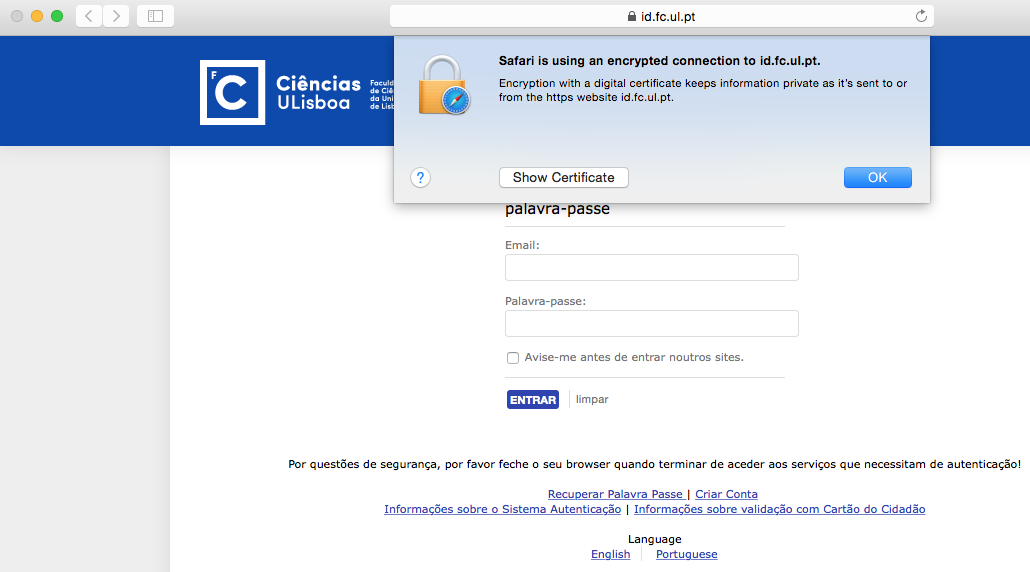
Check (as shown in images 4 and 5) whether they indicate that the certificate is valid (you should click on the padlock symbol).
Chrome
Check (as shown in image 6) whether they indicate that the certificate is valid (you should click on the padlock symbol).
Questions
Are my credentials stored in the browser?
A: With regard to data storage in the browser, the three types of authentication currently available behave differently.
In traditional email+password authentication, credentials can be stored in the browser;with a citizen card (using the card reader application), the information is not stored in the browser and, whenever you use this option, you must always use the PIN associated with the citizen card;
with a digital mobile key (CMD), the mobile phone number (which is previously associated with the civil identification number) and the PIN (set in the CMD) can be stored in the browser. The code obtained by SMS (called SMS Token) is generated automatically and randomly each time you log in.