Turnitin User Guide
IT Support

Turnitin is a software tool that checks the originality of a document, enabling lecturers and students to identify potential instances of similarity between documents.

By comparing a submitted document against an extensive database of student papers, websites and scholarly publications, Turnitin generates a report that identifies all matching text and indicates the original sources from which those similarities originate.

Turnitin can be accessed either through Ciências ULisboa Moodle or directly via the Ciências ULisboa Turnitin website.

Support and guidance on the use of this platform are available from the Academic Development and Training Office, which can be contacted for assistance and to answer any questions.
Access through Ciências ULisboa Moodle

  1. Professors should log in to the Moodle platform as usual using their Ciências ULisboa credentials.;

  2. By default, the Turnitin originality checking option is already enabled for student assignment submissions. However, its settings can be adjusted as described in section 5.;

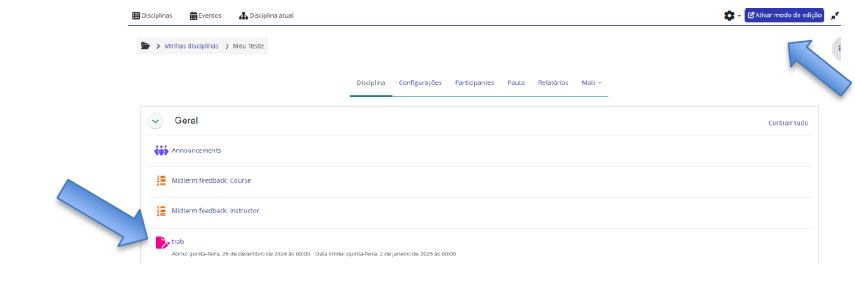
  3. Professors should access their course and select “Turn editing on”. They should then open a topic, click “Add an activity or resource”, and select “Assignment”, as they would normally do:

Turnitin platform
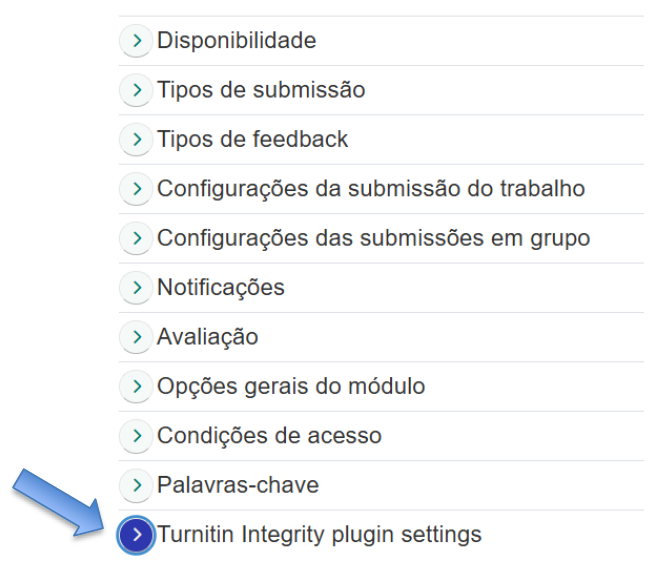
  1. Complete the required assignment settings and then click on “Turnitin Integrity Plugin Settings”:

"Turnitin integrity plugin settings" functionality
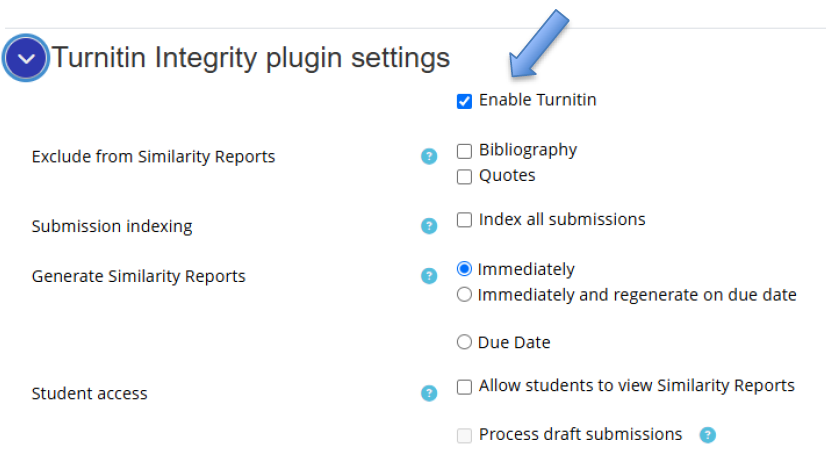
  1. At this stage, the default Turnitin settings menu will appear. You should either accept the default settings or make any changes you consider appropriate. The “Enable Turnitin” option must remain enabled if you wish to use the platform to check assignments submitted by students:

"Enable Turnitin” option
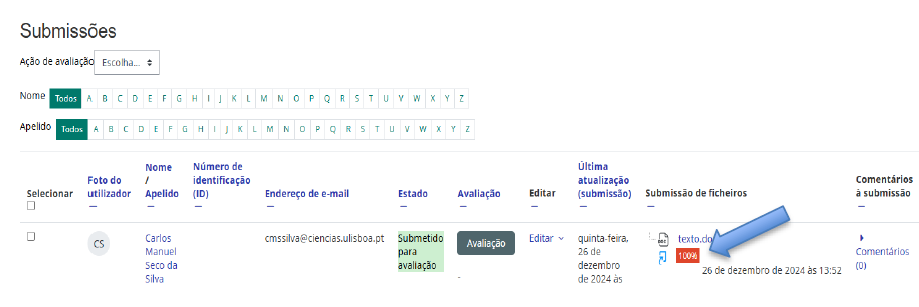
  1. Once students have submitted their assignments, professors can review the similarity percentages by selecting “View all submissions”:

Checking similarity percentages
  1. Professors can now view the similarity percentages for each submitted assignment, both through the percentage displayed and the corresponding colour indicator:

Displaying the similarity percentages for each submitted assignment
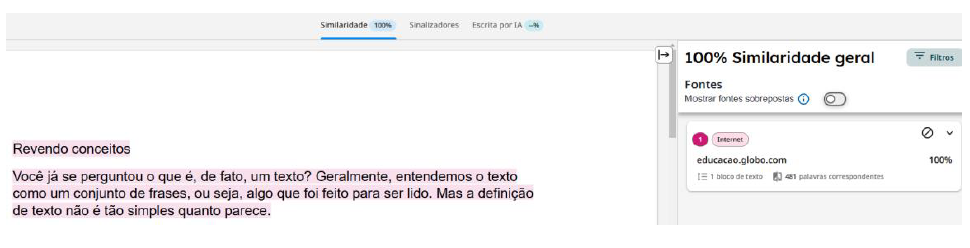
  1. By clicking on that number, the platform will display the original text and the sources in which matching content has been identified:

Viewing the original text and the related sources
  1. It is then up to the professor to determine whether the assignment is acceptable, taking into account the information provided by the platform.

Direct access to the Turnitin tool

Direct access to Turnitin is available through https://antiplagio.ulisboa.pt.

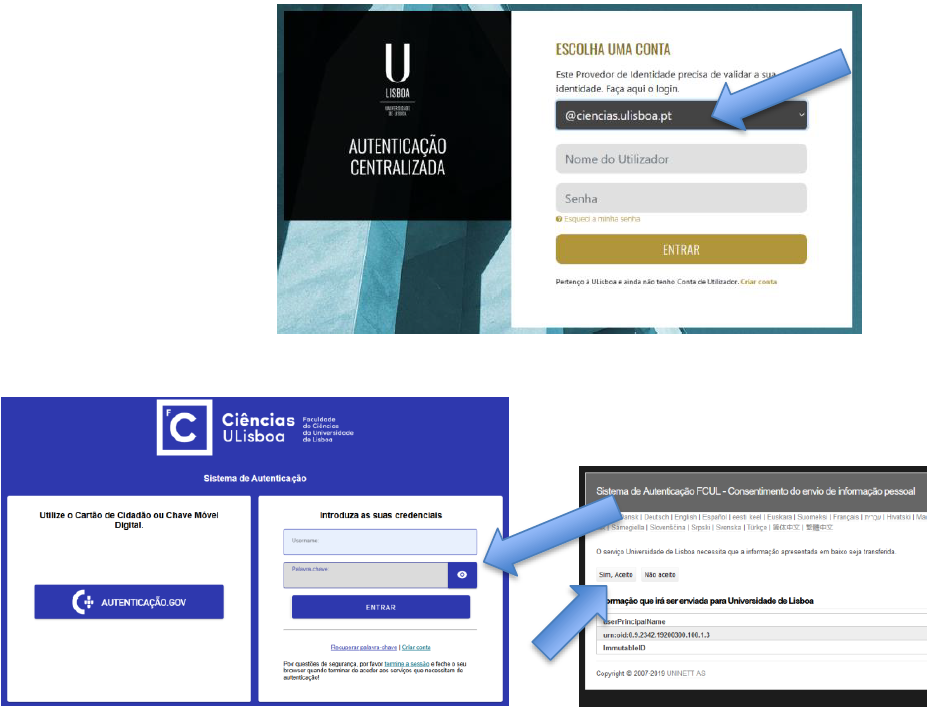
Users should select @ciencias.ulisboa.pt, sign in using their Ciências ULisboa credentials, and accept the information presented on screen.

Authentication on the website
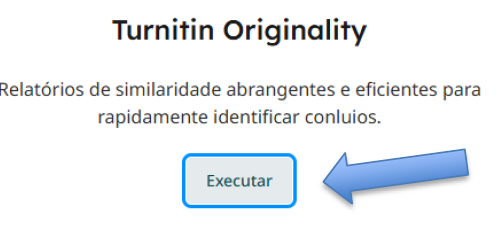
  1. In the “Turnitin Originality” tab, click “Run”.

Enabling the “Run” function
  1. Click “Upload”:

Using the “Upload” function
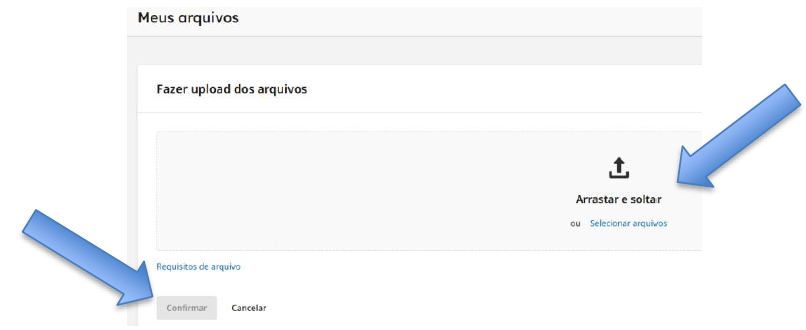
  1. Drag and drop the file you wish to compare into the designated area, or select the file manually and click “Confirm":

Selecting the file for analysis
  1. At this stage, Turnitin compares the document against its database and provides a similarity percentage:

Displaying the analysis results
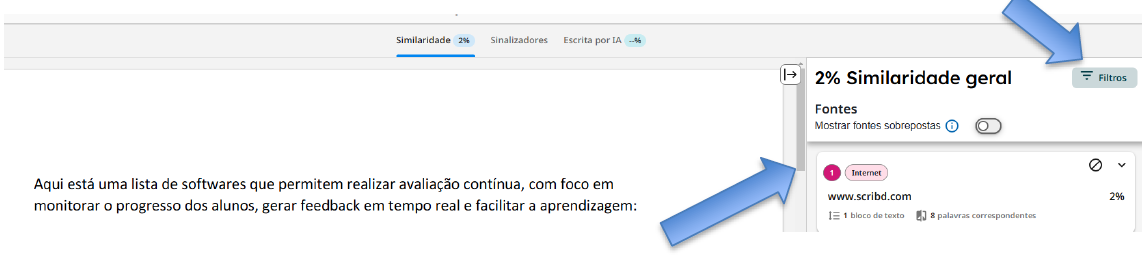
  1. When opening the file under review, professors will have access to information on matching passages, flags, and sections suspected of having been generated by AI, together with the corresponding percentages indicating suspected plagiarism or AI-generated content (displayed in the panel on the right-hand side of the screen):

Viewing the analysis results across the various assessment parameters
  1. By accessing this information, you will be able to view the original text;

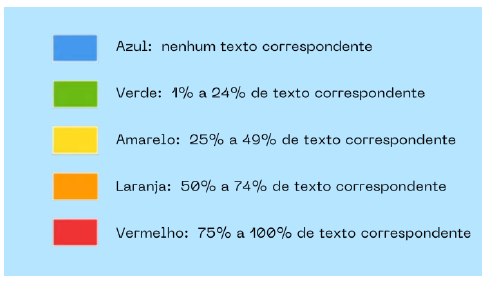
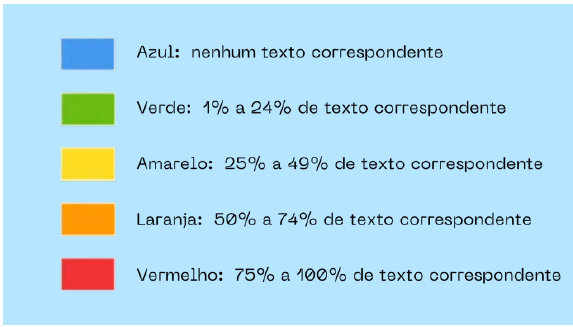
  2. The Similarity Report provided by Turnitin shows the percentage of similarity between documents, using the colour coding and percentage ranges illustrated in the following image:

Colour scale for similarity percentages
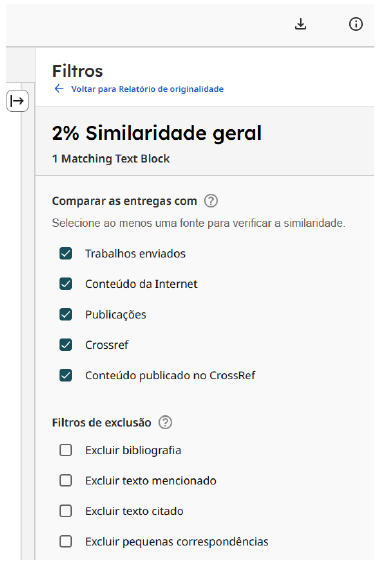
  1. It is then the professor’s responsibility to assess whether the document falls within an acceptable similarity threshold. It is also possible to configure specific filters to exclude certain elements from the similarity check, such as the bibliography or quotations included in the assignment:

Applying filters

Announcements

Journeys of Discovery: Inês Fragata, the biologist who studies how species evolve together